

How
In PowerPoint, “reading order” describes the order in which the objects on each slide should be spoken aloud or navigated by a screen reader. Reading order is automatically assigned by PowerPoint at first, based on the way you add content to the slide or outline. But this won’t always represent the logical speaking order of the objects on your slide. So, you need to check reading order, to make sure it is organized and understandable.
The following article from Microsoft describes how to both check and change the order of objects: Using the Reading Order Pane.
Verify
Use the "Check reading order” prompt within PowerPoint’s Accessibility Checker, or open the Reading Order Pane from the Accessibility menu.

Objects are listed in the numerical order that the screen reader will speak them.
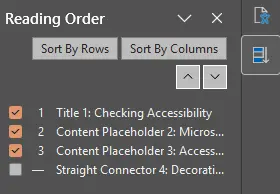
To change the order, you can drag and drop objects upward or downward in the sequence, or use the arrows. Slide titles should always be first. Also, uncheck or de-select any decorative items in the list that should not be spoken aloud.
If you have complex diagrams that are made of multiple objects or images, the best practice is to group the pieces together so that it appears as one item in the reading order, and so the diagram’s Alt Text will be read by the screen reader as a single element.